Google Sheets Charts for Marketing: Five Types Built From Checked Data
Published October 19, 2026 · Written by Aanart

Use a line chart for a time trend, a bar chart for category comparisons, a column chart for a short series of discrete totals, an area chart for the shape of a total over time and a scatter chart to inspect a relationship between two numeric measures.
Through SourcetoMCP’s Google Sheets connector, your assistant can read a connected spreadsheet and create those five chart types. The current chart operation plots one data series at a time. This guide shows how to choose a chart, check the source cells and verify what you created.
Choose the question before the chart
| Chart | Question it can answer | Example axes |
|---|---|---|
| Line | How is a measure changing over time? | Date and daily clicks |
| Bar | Which category has the largest value? | Campaign and spend |
| Column | How do a few period totals compare? | Week and conversions |
| Area | What shape does the total take over time? | Date and total sessions |
| Scatter | Do two numeric measures move together? | Spend and conversions |
Google Sheets itself offers additional types and settings in the chart editor. SourcetoMCP’s create-chart operation currently accepts bar, line, area, column and scatter, with a single series. Use the native editor for chart designs outside that surface.
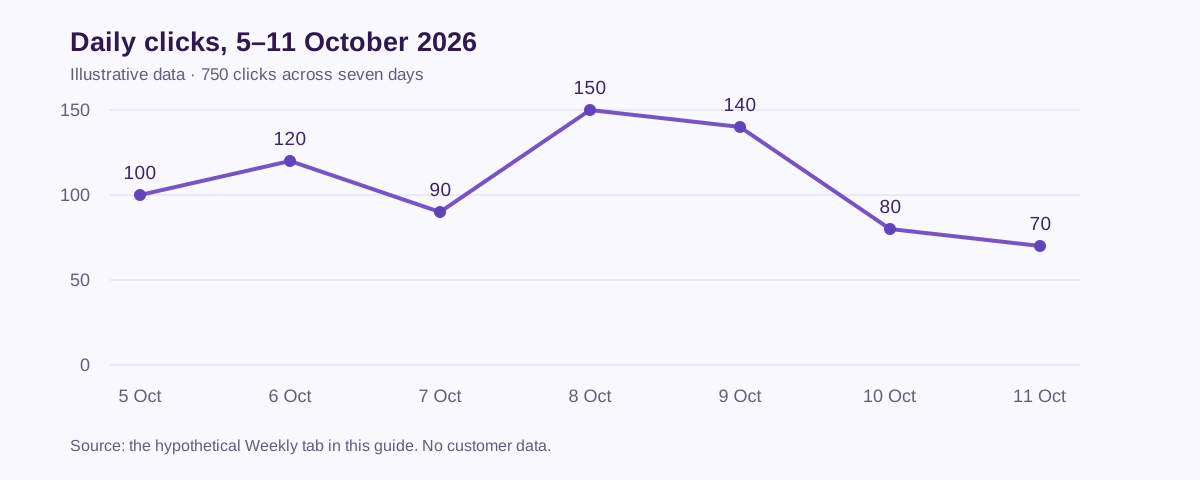
Keep the chart title specific. “Daily clicks, 5–11 October” gives a reader a measure and period. “Marketing performance” leaves both unclear. Include the currency when the values represent money.
Prepare a small dataset you can verify
Start with an existing connected spreadsheet or approve writing a small dataset to a clearly named tab. Use one header row, consistent dates and numeric values. A number stored as text or a total row mixed into daily records can distort the chart.
The following hypothetical data can be copied into a tab named Weekly. Spend is in AUD. These figures illustrate chart construction and are not live campaign results.
| Date | Clicks | Spend (AUD) | Conversions |
|---|---|---|---|
| 2026-10-05 | 100 | 200 | 5 |
| 2026-10-06 | 120 | 240 | 6 |
| 2026-10-07 | 90 | 180 | 4 |
| 2026-10-08 | 150 | 300 | 8 |
| 2026-10-09 | 140 | 280 | 7 |
| 2026-10-10 | 80 | 160 | 3 |
| 2026-10-11 | 70 | 140 | 2 |
The week totals 750 clicks, AUD 1,500 spend and 35 recorded conversions. Overall CPC is AUD 2 and CPA is approximately AUD 42.86. Calculate those ratios from totals. Averaging the seven daily CPAs gives a different answer because the days have different numbers of conversions.
Read the cells back after writing them. Confirm the date order, numeric types and the headers before requesting a chart.
Create a line chart from explicit cell ranges
For the sample tab, the date range is Weekly!A2:A8 and the click range is Weekly!B2:B8. Keep headers outside these example ranges so the plotted values are unambiguous. The two ranges must describe matching records.
Read Weekly!A1:D8 in my connected spreadsheet. Confirm that it contains seven ordered dates, numeric clicks, AUD spend and conversions, with totals of 750 clicks, AUD 1,500 and 35 conversions. If the values match, propose a LINE chart titled “Daily clicks, 5–11 October 2026”, using domain_range Weekly!A2:A8, series_range Weekly!B2:B8 and anchor_cell Weekly!F2. Wait for approval before creating it.
The approved create action adds a visible chart to the spreadsheet. Save the returned chart ID so you can identify that chart during a later update. The anchor places the chart beside your data, rather than changing the values it reads.
For the wider data-cleaning workflow, use our Google Sheets automation guide. Keep this chart request focused on the question and source ranges.
Use bar, column and area charts deliberately
Use a horizontal bar chart when campaign names are long. Sort complete records together before charting so a label never becomes separated from its value. A chart of spend can show where budget went, but needs outcome data before it supports a claim about efficiency.
A column chart suits a small set of weekly or monthly totals. Preserve complete reporting periods and label incomplete periods explicitly. Comparing three days of this week with seven days of last week would make a simple volume comparison misleading.
An area chart emphasises the size and shape of a measure across time. Use it for a total such as daily sessions. A stacked area chart with multiple channels is outside the current single-series create operation, so use the Sheets editor when that is the presentation you need.
Each chart should use a measure with a consistent definition. Combining different conversion definitions under one label can create a neat-looking comparison that answers the wrong question.
Use a scatter chart to investigate a relationship
In the sample, use spend as the numeric domain and conversions as the series. Each point represents one day. A scatter chart lets you inspect whether higher-spend days also have more recorded conversions.
Using the verified Weekly tab, propose a SCATTER chart with domain_range Weekly!C2:C8 and series_range Weekly!D2:D8. Title it “Daily spend (AUD) and recorded conversions”. Anchor it at Weekly!F20. Explain that each point is a day, and keep this separate from the clicks chart. Wait for approval before creating it.
The chart shows an association within seven illustrative records. It does not establish that adding spend causes the corresponding increase in conversions. Audience mix, demand, attribution delay and other changes can affect both axes.
Update an existing chart and check it in Sheets
Ask the assistant to list the spreadsheet’s charts and identify the intended chart by ID, title and tab. This avoids creating a second chart when you mean to update the first.
SourcetoMCP’s update-chart operation replaces the supported chart specification, including its type, ranges and legend setting. Give the complete intended specification even when you are changing only the data range. It preserves the chart’s current position.
A fixed range such as A2:A8 covers only those cells. If you append another week below it, deliberately extend the chart ranges or replace the original reporting window. Adding rows does not turn this into an automatically scheduled report.
Open the chart in Sheets and check the axis labels, date handling, data range and plotted values. Record the chart ID and source range beside your marketing dashboard so the next update can be checked against the same definitions.